
Paystack WooCommerce: Take Card, Transfer and USSD Payments in Naira
"Send me your account number." "I've paid, here's the screenshot." "Please confirm, I'm waiting." If this is how your business collects money, you already know the cost: hours on WhatsApp, fake transfer alerts, and customers who give up before paying.
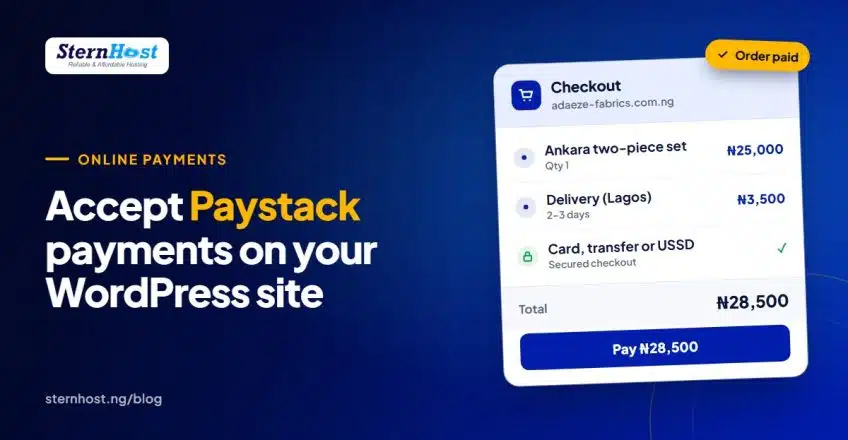
Connecting Paystack WooCommerce payments to your WordPress website fixes all of that. Customers pay by card, bank transfer or USSD on your site, the order is marked paid automatically, and the money settles into your Nigerian bank account. Nobody has to send a screenshot.
This guide walks you through the whole setup in under an hour: activating Paystack, installing the plugin, connecting the webhook (the step most people skip), testing, and going live.
What you need before you start
- A WordPress website with WooCommerce installed. WooCommerce is the free plugin that turns WordPress into an online store.
- An SSL certificate (https). Payment pages must be secure. Most good Nigerian hosts include free SSL; if your site shows "Not secure" in the browser, fix that first.
- A Paystack account. Free to open at paystack.com.
- A domain name in your business name. Not sure whether to pick .ng, .com.ng or .com? Read our guide to choosing a Nigerian business domain.
- A Nigerian bank account for settlements, in your name or your business's name.
Step 1: Open and activate your Paystack account
Sign up at Paystack with your email, then complete activation in the dashboard. Until you activate, your account only works in Test Mode.
Paystack offers two account types:
| Account type | Who it's for | Main limit |
|---|---|---|
| Starter Business | Not yet registered with CAC | Total collections capped (₦8 million at the time of writing); some features such as Transfers are unavailable |
| Registered Business | Business name or company registered with CAC | No collection cap, all features |
If you're just starting, Starter is fine. You can upgrade to Registered later from Compliance → Profile without changing anything on your website.
Step 2: Install the Paystack WooCommerce plugin
- In WordPress, go to Plugins → Add New.
- Search for "Paystack WooCommerce Payment Gateway". The official plugin is published by Paystack, has 20,000+ active installs and is updated regularly. Avoid copies from other authors.
- Click Install Now, then Activate.
Step 3: Connect your Paystack WooCommerce settings
Go to WooCommerce → Settings → Payments and click Paystack (or Set up beside it).
- Tick Enable Paystack.
- Title: what customers see at checkout. "Pay with card, transfer or USSD" works better than the default.
- Test Mode: tick it for now.
- Payment Option: choose Popup (customers pay without leaving your site) or Redirect (they go to a Paystack page and come back). Popup keeps customers on your site, which many stores prefer on mobile.
- API keys: in your Paystack dashboard, open Settings → API Keys & Webhooks. Copy the Test Secret Key and Test Public Key into the matching plugin fields.
- Click Save changes.
Step 4: Add the webhook (don't skip this)
This is the step that separates stores that work from stores with "missing" orders.
A webhook is a message Paystack sends straight to your website the moment a payment succeeds. Without it, WooCommerce only learns about a payment if the customer's browser returns to your site after paying. On a weak network, or if they close the tab too early, the money arrives but the order stays "Pending payment".
- At the top of the Paystack settings page in WooCommerce, copy the Webhook URL shown.
- In the Paystack dashboard, go to Settings → API Keys & Webhooks.
- Paste it into the Test Webhook URL field and save.
You'll repeat this for the Live Webhook URL when you go live.
Step 5: Test with a fake payment
- Add a product to your cart and go to checkout like a real customer.
- Pay using one of the test cards in Paystack's documentation. No real money moves.
- Check three things:
- You land on the "Order received" page.
- In WooCommerce → Orders, the order shows Processing (paid), not Pending.
- The transaction appears in your Paystack dashboard under Transactions (in Test Mode).
Do it once on your phone too, since most Nigerian shoppers will be paying on mobile.
Step 6: Go live
- In the Paystack dashboard, switch from Test Mode to Live Mode (the toggle appears once your account is activated).
- Copy the Live Secret Key and Live Public Key into the plugin and untick Test Mode.
- Add the webhook URL to the Live Webhook URL field.
- Make one small real purchase (₦100–₦500) and refund it from the dashboard to confirm everything works end to end.
How much Paystack charges
At the time of writing, Paystack's widely published rates for Nigerian businesses are:
- Local cards: 1.5% + ₦100 per transaction, with the ₦100 waived on payments under ₦2,500 and the total fee capped at ₦2,000.
- International cards: 3.9% + ₦100.
Fees change, so always confirm on Paystack's pricing page before setting your prices. On a ₦25,000 order, a 1.5% + ₦100 fee is about ₦475. Many sellers simply build it into their product price. If you're still comparing options, see our overview of the top payment gateways in Nigeria.
Common problems and quick fixes
- Paystack doesn't show at checkout: check Enable Paystack is ticked and that the keys match the mode (test keys with Test Mode on, live keys with it off).
- Payments succeed but orders stay "Pending": the webhook is missing or pasted in the wrong mode's field.
- The popup doesn't open: a caching or optimisation plugin may be delaying Paystack's script. Exclude the cart and checkout pages from caching and script delay.
- "Invalid key" error: you copied a test key into a live field (or the other way round), or there's a space at the end.
Frequently asked questions
Do I need a registered business (CAC) to use Paystack?
No. You can start as a Starter Business with your personal details and upgrade to a Registered Business later. Starter accounts have a collection cap and fewer features.
Can customers pay by bank transfer and USSD, not only card?
Yes. Paystack's checkout offers several channels, including card, bank transfer and USSD, depending on what's enabled on your account. Customers choose the one they prefer.
How long does it take to receive my money?
Paystack settles to your Nigerian bank account on a regular schedule, usually the next business day for local payments. Check your settlement schedule in the dashboard.
Is the Paystack WooCommerce plugin free?
Yes. The plugin is free to install from WordPress.org. You only pay Paystack's per-transaction fees when a customer pays you.
Does Paystack work without WooCommerce?
Yes. You can use Paystack payment pages or other plugins for donations, bookings and forms. WooCommerce is the best fit when you sell products with stock, delivery and orders.
Give your store hosting built for WooCommerce
A payment setup is only as reliable as the website behind it. If your site is slow or goes down during checkout, customers abandon their carts, and webhooks from Paystack can't reach you.
SternHost's WordPress hosting is built for exactly this kind of store: fast LiteSpeed servers, free SSL for secure checkout, daily backups and one-click WordPress and WooCommerce install, all billed in naira from ₦1,450/month.
Start your WooCommerce store on SternHost WordPress hosting from ₦1,450/month and take your first Paystack payment this week. No domain yet? Get your .com.ng at the same time.